
Introduction
Scroll through any festival feed and you will see dozens of attempts at this scene. Very few capture it properly, and the difference is almost always the prompt. Kanakadasa Jayanti honours a saint whose songs still fill Karnataka’s temples. Kanakadasa Jayanti brings with it a mood that is hard to describe and even harder to photograph — devotional and soulful energy, temple stone gold, white dhoti and brass cymbals, and the kind of light that only exists for a few precious hours. That is why so many people search for a ready-made prompt: they want their photo to carry the whole feeling of the festival, not just a flat record of it.
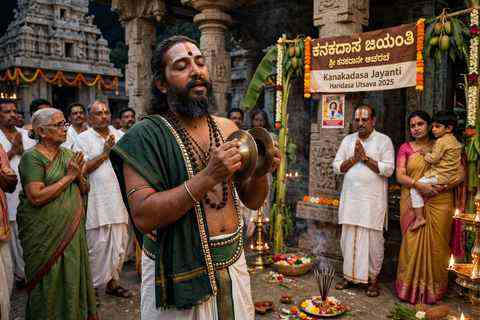
Picture this: a devotional Haridasa singer performing keertanas with cymbals at a Karnataka temple, with devotees listening. Around the subject you can see brass cymbals ringing in the singer’s hands, devotees seated in rows, eyes closed in devotion, and temple pillars and lamps framing the performance. A good AI photo prompt does not just name these elements; it arranges them the way a professional photographer would — choosing the light, the framing and the depth of field so the eye lands exactly where it should. The prompt below does all of that in one copy-paste block, and it has been written specifically for this Kanakadasa Jayanti moment rather than borrowed from a generic festival template.
In this article you will get the complete prompt, a clear explanation of why each part of it works, simple steps to use it in any AI image tool, and practical tips to make your result look less like an AI render and more like a photograph taken on the spot. Whether you want a profile picture, a festival greeting card for family, or a post that stands out on Instagram and WhatsApp, this prompt gives you a strong starting point that you can reuse again and again.
The Prompt
Copy the entire block below exactly as it is and paste it into your favourite AI image generator. Do not shorten it — every phrase earns its place, from the lighting to the framing.
Ultra-realistic high-resolution photograph of a devotional Haridasa singer performing keertanas with cymbals at a Karnataka temple, with devotees listening, captured in the pillared hall of a Karnataka temple. The main subject is a Haridasa singer performing keertanas at a temple, dressed in white dhoti, angavastra and tilak. Cinematic lighting with warm temple lamplight, sharp focus on the subject, natural skin texture, rich colours of temple stone gold, white dhoti and brass cymbals, a festive and devotional and soulful atmosphere, balanced portrait framing, softly blurred bokeh background, professional DSLR quality, photorealistic, Instagram-ready, no text, no watermark, no distortion, natural expressions, authentic festive details.
Why This Prompt Works
The first strength of this prompt is specificity. Instead of asking for a vague festival photo, it names the exact scene — a devotional Haridasa singer performing keertanas with cymbals at a Karnataka temple, with devotees listening — so the generator has no room to drift into a generic celebration image. The setting, the pillared hall of a Karnataka temple, anchors the background, while temple stone gold, white dhoti and brass cymbals give the model a colour palette to follow rather than leaving it to guess.
Second, the prompt controls the light. Warm temple lamplight is not a decorative phrase; lighting is what separates a flat AI image from a photograph that feels real. Combined with sharp focus on the subject and natural skin texture, it stops the waxy, plastic look that gives away most AI portraits. The softly blurred bokeh background then does what a real camera lens does — it keeps the subject crisp while the surroundings melt into beautiful colour.
Third, the framing is deliberate. Balanced portrait framing suits phone screens, profile pictures and social feeds, which is where this image will actually be seen. The festive details — brass cymbals ringing in the singer’s hands, devotees seated in rows, eyes closed in devotion and temple pillars and lamps framing the performance — are the storytelling layer: they tell anyone who sees the photo exactly which festival this is, without a single word of caption. Finally, the closing instructions, photorealistic, Instagram-ready, no text and no watermark, protect the result from the two most common AI flaws: stray garbled letters and ugly logos.
How to Use
- Copy the full prompt from the prompt block above, including the lighting and framing instructions.
- Open your AI image generator of choice, such as Midjourney, DALL-E, Gemini, Bing Image Creator or any photo-style AI app.
- Paste the prompt into the text box and generate the first version. Do not change any words on the first try.
- Look closely at the result: check the face, the hands, the lighting and the background blur. If something looks off, regenerate rather than editing the prompt straight away.
- If you want a variation, change only one element at a time — for example, swap the outfit colour, or ask for a closer portrait — so you can see what each change does.
- Once you are happy with the image, download it at the highest resolution available and use it as your profile photo, festival greeting or social media post.
Pro Tips
Generate three or four versions of the same prompt and pick the best one instead of settling for the first result; AI tools vary a lot between runs, and the second or third image is often the strongest. If the face looks slightly unreal, add the words natural skin texture and candid expression to your next attempt. For a greeting-card look, generate the image first and add your own text afterwards in a photo editor — letting the AI draw letters almost always produces spelling mistakes.
Timing matters for sharing too. Post your Kanakadasa Jayanti photo on the festival day itself or the evening before, when friends and family are actively looking for festive images, and pair it with a short personal caption rather than a long explanation. Keep the original high-resolution file safe, because a compressed WhatsApp forward will lose the fine detail that makes this prompt shine. Finally, respect the festival: this prompt celebrates Kanakadasa Jayanti, so use the image for greetings, memories and creative posts, not for misleading claims about real events.
FAQ
Can I use this prompt for free? Yes. The prompt above is free to copy and use in any AI image generator, for personal posts, greetings and profile pictures.
Which AI tool gives the best result with this prompt? Photo-realistic tools such as Midjourney, Gemini and DALL-E handle this prompt well, but any modern generator that supports detailed photographic prompts will produce a good result. Try two tools and compare.
Can I change the outfit or the background? Absolutely. The prompt is a starting point — you can change colours, outfits or small background details, but keep the lighting and framing phrases intact for the most realistic result.
Why does my image sometimes have strange hands or faces? AI generators still struggle with fine details. Regenerate the image, keep the natural skin texture and sharp focus phrases, and pick the best of several versions rather than editing a flawed one.
This Kanakadasa Jayanti moment deserves a photo that feels as devotional and soulful as the real thing, and with this prompt you can create one in under a minute. Copy it, generate it, share it — and let your festival photo carry the light, the colour and the joy of the celebration itself.
Related Viral Prompts
#PromptBazar #AIPhotoPrompt #KanakadasaJayanti2026 #ViralPhotoPrompt #FestivalPhotography


Leave a Reply