Introduction
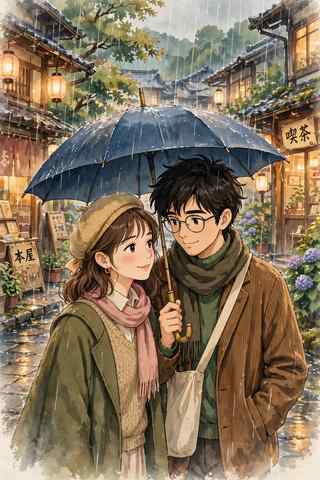
Scroll through any social feed this year and you will spot them instantly: ordinary selfies reborn as luminous Studio Ghibli portraits, each one glowing with hand-painted charm. The trend shows no sign of slowing down, because unlike most filters, the Ghibli look tells a story. This free Ghibli AI photo prompt was crafted to tell yours — transforming your picture into a couple under one umbrella in a scene that feels lifted from a beloved anime film.
The secret is specificity. Instead of a vague instruction like “make me anime,” the prompt directs the AI with concrete imagery: a bright red umbrella, reflections in puddles, and the atmosphere of a rainy town street. It asks for warm shop lights plus small storytelling touches such as streaks of rain and smiles close together. Those details are what separate a flat cartoon effect from a portrait that makes people stop scrolling and ask how you made it.
You do not need any technical background to use it. The full prompt is waiting below in a ready-to-copy block, followed by a plain-English explanation of why it works so well, simple steps for every major AI image generator, professional tips for the best possible likeness, and a short FAQ. By the end of this guide, your camera roll will have its own romantic and cozy Ghibli moment.
The Prompt
Here is the exact prompt. Copy everything inside the box below and paste it into your favorite AI image generator along with your photo. Do not change the wording on your first try — it is tuned so the AI keeps your face recognizable while rebuilding the world as a rainy town street.
Transform our photo into a Studio Ghibli anime portrait of a couple under one umbrella, keeping both of our exact faces, hairstyles and loving expressions. Show us close together under a bright red umbrella on a rainy town street, with reflections in puddles, warm shop lights glowing and streaks of rain around us. Use soft cel shading, cozy rain colors, shimmering wet details and the intimate romance of a Ghibli rainy-day scene. Portrait orientation, highly detailed anime illustration.
Notice how the prompt does three jobs at once: it locks in your identity (“keeping my exact face”), it art-directs the scene (a bright red umbrella, warm shop lights), and it sets the rendering style (soft cel shading, hand-painted details). That three-part structure is what makes it reliable across different AI tools.
Why This Prompt Works
Identity comes first. The opening instruction — keeping your exact face, hairstyle and expression — anchors the whole generation. Everything Ghibli-flavored that follows, from the costume to a rainy town street, is painted around a face that stays unmistakably yours. That is why this prompt beats one-tap anime filters that turn everyone into the same character.
Concrete details beat adjectives. Compare “make it Ghibli” with this prompt’s direction: a bright red umbrella, reflections in puddles, warm shop lights. Specific objects give the AI something to draw, and drawn things look intentional. The background stops being wallpaper and starts being a place — a rainy town street you can almost step into.
Mood is engineered, not hoped for. By naming a romantic and cozy mood and pairing it with soft cel shading and hand-painted detail, the prompt controls the emotional temperature of the image. Ghibli films are masters of feeling — a quiet afternoon can feel epic — and this prompt borrows that exact technique for your portrait.
Finishing touches do the heavy lifting. Little elements like streaks of rain and smiles close together might seem decorative, but they are what viewers remember and mention. They add the lived-in richness of real Ghibli background art, turning a nice portrait into one people screenshot and share.
How to Use This Prompt
Step 1 — Start with a clean portrait: A well-lit, front-facing photo works best. The prompt instructs the AI to preserve your exact face, so feed it a photo where your features are clearly visible.
Step 2 — Copy the full prompt text: Use the ready-made block above. Copy it word for word the first time; you can experiment with tweaks after you see a result you like.
Step 3 — Pair photo with prompt: In your chosen AI generator — Midjourney, DALL-E, Gemini, Leonardo or similar — upload the photo and paste the prompt. Make sure the tool is in image-edit or image-reference mode if it has one.
Step 4 — Review the variations: Generate a few options and pick the portrait where you are instantly recognizable as a couple under one umbrella. The background details will vary slightly each run, which is part of the fun.
Step 5 — Polish and post: Save the best version at full resolution. It makes a wonderful profile picture, a printed gift, or a post your followers will love.
Pro Tips for Best Results
Use a sharp, front-facing photo. The prompt preserves your exact face, but it can only preserve what it can see. A clear photo with even lighting gives the AI the most to work with.
Keep the prompt intact on round one. Details like a bright red umbrella and warm shop lights were balanced against each other. Change one thing at a time afterward so you learn what each clause does.
Ask for portrait orientation explicitly if needed. The prompt already requests it, but some tools default to square — add “vertical 3:4” to the end if your generator ignores the orientation cue.
Regenerate for background variety. Your face stays consistent while backgrounds like streaks of rain and smiles close together remix between runs. Three generations usually surface one clear winner.
Finish with a gentle upscale. AI portraits sharpen beautifully. A light 2x upscale makes the hand-painted background details — reflections in puddles especially — look stunning in print or as a wallpaper.
Frequently Asked Questions
Will this prompt really keep my face looking like me?
Yes — that is the prompt’s first instruction. It tells the AI to preserve your exact face, hairstyle and expression while transforming you into a couple under one umbrella. For the strongest likeness, start with a clear, front-facing, well-lit photo and avoid heavy makeup filters on the source image.
Which AI image tools work with this prompt?
All major ones: Midjourney, DALL-E, Google Gemini, Leonardo AI, Adobe Firefly and similar generators. Any tool that accepts an uploaded reference photo plus a text prompt will work. If your tool has an image-strength or creativity slider, keep it in the middle so your face stays faithful while the romantic and cozy Ghibli scene shines.
Can I customize details like a bright red umbrella?
Absolutely. After your first successful generation, swap individual details to taste — change a bright red umbrella to something personal, or adjust the setting while keeping warm shop lights. Change one element at a time so you can see exactly what each edit does to the final portrait.
Is the prompt free to use, and can I share my result?
The prompt itself is completely free — copy it, remix it and use it as often as you like. Most AI tools offer free tiers or trial credits, so your first portraits may cost nothing at all. Your generated portrait is yours to share; posting it with Ghibli and AI art hashtags is a great way to join the trend.
Your photo already holds a story — this prompt simply retells it the way Studio Ghibli would, with soft light, hand-painted detail and a romantic and cozy heart. Copy the prompt, keep your face front and center, and let a rainy town street become your own little film still. When your portrait is ready, share it proudly: the world can always use one more moment of Ghibli magic.
Related Viral Prompts
- Ghibli Style Rabbit Companion
- Ghibli Style Friends Beach Day
- Ghibli Style Traveler Portrait Backpack
#GhibliAI #AIPhotoPrompt #StudioGhibli #CoupleUnderUmbrella #PromptBazar

Leave a Reply