Introduction
There is a particular kind of magic in a Studio Ghibli background. Light filters through leaves in soft patches, clouds pile up like whipped cream, and even a quiet village street seems to hum with stories. It is no wonder millions of people dream of living inside those painted frames — and now, with one clever AI prompt, your own photograph can take you there.
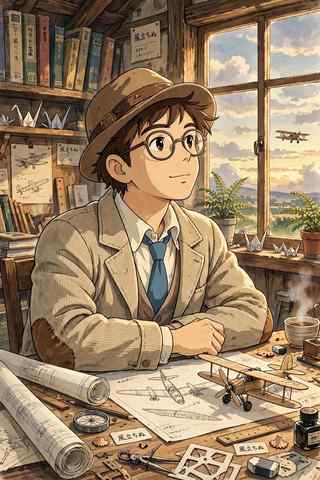
This prompt reimagines you in a scene of as a young engineer sketching airplanes and dreaming of the sky. Every detail is painted in the Ghibli house style: a folded paper plane, a wooden drafting table, an endless blue sky, all glowing with that warm, nostalgic light. Most importantly, the prompt is engineered to preserve your facial identity, so friends will recognize you instantly — you will simply look like the most beautiful animated version of yourself.
Below you will find the full copy-paste prompt, why each part of it matters, exactly how to use it with any AI image generator, pro tips that make the difference between a good result and a breathtaking one, and a FAQ section. Let us turn your photo into a inspiring and melancholic work of art.
The Prompt
Copy the exact prompt below and paste it into your favorite AI image generator along with your photo:
Transform this photo into a Studio Ghibli style anime portrait, keeping the exact face, expression and identity of the person. Place the subject in a scene of as a young engineer sketching airplanes and dreaming of the sky, surrounded by a folded paper plane, a wooden drafting table, and an endless blue sky. Hand-painted anime look with soft watercolor shading, delicate line art, vibrant yet gentle colors, dreamy lighting and a richly detailed background. Portrait orientation, high detail, 4k anime illustration.
Why This Prompt Works
The secret of this prompt is specificity. Instead of asking for “an anime picture,” it asks for a “Studio Ghibli style anime portrait” — and that single phrase carries enormous visual information. The AI reaches for soft watercolor gradients, gentle cel shading, expressive eyes, and backgrounds packed with loving detail.
Identity preservation is the second pillar. By explicitly instructing the model to keep your exact face and expression, the prompt prevents the most common disappointment in AI portraits: looking like a stranger. Your bone structure, your smile, the little things that make you recognizable all survive the transformation.
The third pillar is the scene itself. Describing a folded paper plane, a wooden drafting table, and an endless blue sky turns a flat portrait into a story. Ghibli’s genius was always in backgrounds that feel like places you could visit, and these concrete details push the AI to compose a inspiring and melancholic world around you rather than a plain backdrop.
The finishing touch is the quality directive. “Portrait orientation, high detail, 4k anime illustration” may sound like technical garnish, but it consistently produces sharper lines, richer color, and a more polished final image — the difference between a fun experiment and a portrait you will actually frame.
How to Use This Prompt
Using this prompt could not be simpler. It works with Midjourney, DALL-E, Gemini, Stable Diffusion, Leonardo AI, and virtually every modern AI image generator. Follow these six steps:
- Choose your photo. Pick a clear, front-facing picture with good lighting and a simple background. The AI preserves identity best when it can see your face clearly — avoid heavy filters, sunglasses, or extreme angles.
- Open your AI image tool. This prompt works in Midjourney, ChatGPT with DALL-E, Google Gemini, Leonardo AI, or any image generator that accepts an uploaded reference photo plus a text prompt.
- Copy the prompt. Scroll up to the box under ‘The Prompt’ and copy the entire text exactly as written — every detail about the The Wind Rises dreamer engineer scene matters, from a folded paper plane to an endless blue sky.
- Upload and paste. Upload your chosen photo to the tool, then paste the prompt into the prompt field. If your tool has a face-match or image-strength setting, set it to favor the reference photo.
- Generate and review. Hit generate and wait a few seconds. Check that your face still looks like you and that the a folded paper plane and a wooden drafting table details came through beautifully.
- Refine and share. If anything looks off, regenerate or tweak one detail at a time. When you love it, download the highest resolution available and share your inspiring and melancholic Ghibli portrait with the world.
Pro Tips for Best Results
These small refinements separate an okay result from a jaw-dropping one:
- Avoid sunglasses and hats in the source photo. Anything covering your face makes identity preservation much harder for the AI.
- Use the result as a profile picture first. Ghibli portraits make fantastic avatars because they are warm, distinctive, and instantly eye-catching.
- Keep the prompt text unchanged on your first try. Once you see a result you like, then experiment with swapping scene details.
- Face the camera directly. Front-facing photos give the model the clearest map of your features, which means a more recognizable final portrait.
- Mention portrait orientation in your tool’s settings too. Some generators default to square, so double-check the aspect ratio before generating.
- If the scene feels too busy, remove an endless blue sky from the prompt and regenerate for a calmer, cleaner composition.
Frequently Asked Questions
Can I change the background scene?
Absolutely. The a folded paper plane, a wooden drafting table, and an endless blue sky details are swappable. Keep the style and identity lines untouched, and replace the scenery with anything you imagine — a beach, a city street, a snowy mountain — while staying in the Ghibli aesthetic.
How long does generation take?
Usually under a minute. Most modern tools return the Ghibli portrait in 10 to 60 seconds depending on the model and server load. Copying the prompt and uploading your photo takes longer than the actual generation.
My face looks slightly off — how do I fix it?
First, try a clearer source photo with even lighting. Second, regenerate — each run varies. Third, raise your tool’s face-fidelity or image-strength setting so the model clings closer to your reference. One of these three fixes solves the issue in nearly every case.
Is the prompt free to use?
Completely free. Copy it, use it as many times as you like, and share your creations anywhere. The only possible cost is whatever your chosen AI image tool charges for generations — many offer free tiers that are plenty for this.
There is a little bit of magic waiting in every camera roll, and now you know exactly how to release it. With one copy-paste prompt, your everyday photo becomes a inspiring and melancholic Ghibli portrait worthy of a film still. Try it today, experiment with the scene details, and enjoy seeing yourself through the eyes of classic anime.
Related Viral Prompts
Love this style? Try these next:
- When Marnie Was There Seaside Mansion AI Photo Prompt — turn your photo into a dreamy When Marnie Was There seaside mansion scene.
- My Neighbor Totoro Catbus Ride AI Photo Prompt — turn your photo into a dreamy My Neighbor Totoro catbus ride scene.
- Spirited Away Train Ride AI Photo Prompt — turn your photo into a dreamy Spirited Away train ride scene.
#GhibliAI #AIPhotoPrompt #StudioGhibli #The #PromptBazar

Leave a Reply