
Introduction
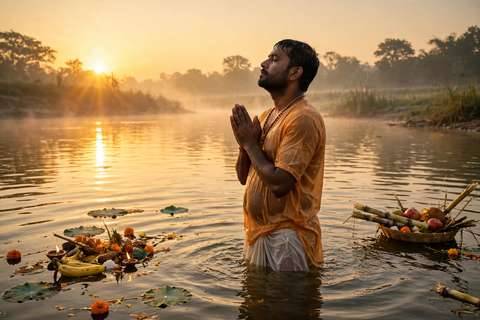
Every year, feeds fill up with Chhath Puja photos, but only a few of them truly stand out, and the difference is almost always the detail in the prompt behind them. Devotee standing waist deep in the water praying to the rising sun at Chhath Puja sounds simple when you say it in one line, yet the version that goes viral has layers: the setting, the expressions, the colours, the light, and the small human touches that make the scene feel real. That is what this article gives you, a ready-to-copy prompt plus a clear guide to using it well.
What you are about to create is not a stock-style image. It is a scene with a mood: serene, prayerful and powerful. The prompt describes a devotee standing waist deep in the river in the river at sunrise during Chhath Puja, and it pays attention to the small things, like the glow of the light and the expressions on people’s faces. Those small things are what separate a photo that gets a quick like from one that gets shared, saved and talked about.
There is no single right version of this photo, and that is part of the fun. You can generate it two or three times and pick the frame you love most, or change one detail, like the time of day or the colours, and create a whole set. This article gives you the strongest starting version, so your first attempt is already close to perfect, and then shows you how to tweak it safely without losing what makes it work.
The Prompt
Copy the complete prompt below and paste it into your AI image tool along with your photo:
Transform the uploaded photo into a beautiful, realistic festive photograph of a devotee standing waist deep in the river in the river at sunrise during Chhath Puja. Keep my face exactly the same as in the original photo, with the same facial features, same skin tone, same smile and same identity, do not change or beautify the face. Show devotee standing waist deep in the water praying to the rising sun at Chhath Puja in vivid detail, with the rising sun glowing behind the devotee as water ripples around them. Setting: the river at sunrise during Chhath Puja, with authentic festive decorations, natural surroundings and a sense of place that feels real and lived in. Outfit and styling: traditional festive clothing suited to Chhath Puja, neat, colourful and appropriate for the occasion, with natural fabric folds and realistic details. Lighting: warm, natural and cinematic, soft golden light that flatters the subject, gentle shadows, and a glow that matches the time of day in the scene. Camera: shot on a DSLR, 50mm lens, shallow depth of field, sharp focus on the main subject, softly blurred background, eye-level angle, natural composition. Style: ultra-realistic photograph, high detail, true-to-life colours, natural skin texture, no cartoon look, no distorted hands or faces, no extra people, no watermark, no text. Mood: serene, prayerful and powerful, joyful and heartfelt, a photograph that feels like a real memory from Chhath Puja.
Why This Prompt Works
The face instruction is the heart of the prompt. By telling the tool to keep the face exactly the same, you protect the one thing that makes the photo personal. Many AI edits drift into a stranger’s face, and that ruins the result. This prompt anchors the identity first, then builds everything else around it, so the finished image still looks like you, only in a beautiful festive setting.
The mood instruction deserves special attention. Saying the photo should feel serene, prayerful and powerful guides hundreds of small choices the tool makes, from the softness of the light to the expressions on faces and the richness of the colours. Mood is hard to describe, but when you name it clearly, the tool has a target to aim for. That is why two prompts with the same scene can look so different: one has a mood, and the other does not.
Put simply, the prompt succeeds because it treats the AI tool like a skilled photographer with a clear brief. It gives the subject, the setting, the light, the camera and the feeling, and it protects your face above everything else. For a Chhath Puja photo, that combination is powerful: the scene feels authentic, the person in it is recognisably you, and the mood matches the occasion. Readers and followers respond to that authenticity, which is why photos made with prompts like this one get saved and shared far more than generic festive graphics. If you use this prompt exactly as written for your first attempt, you will see the difference immediately, and you will have a strong base to customise from.
How to Use This Prompt
Using this prompt takes only a few minutes, and the steps below work for Nano Banana 2 and Gemini image editing. Follow them in order for your best first result.
- Step 1: Open Nano Banana 2 or Gemini image editing on your phone or computer and start a new image edit. Make sure you are signed in, because the tool needs your account to save and download the finished photo.
- Step 2: Upload a clear, well-lit photo of yourself or your subject, ideally a front-facing portrait with a natural expression. The better the uploaded photo, the more accurately the tool can keep the face the same in the festive scene.
- Step 3: Copy the full prompt from the box above and paste it into the prompt field, exactly as written. Do not shorten it on your first try, because every detail about the setting, the lighting and the camera helps the tool build a realistic image.
- Step 4: Generate the image and look closely at the result. Check the face first, then the hands, the outfit and the background. If something looks off, generate two or three more takes with the same prompt and pick the cleanest one.
- Step 5: Refine only if needed by changing one small detail at a time, such as the brightness or the colours, then download the best version in high quality and share it on WhatsApp, Instagram or Facebook with a short festive caption.
Most people get a great result within two or three generations. Save your favourite version, and keep the prompt saved in your notes so you can reuse it for other photos or other family members during Chhath Puja.
Pro Tips
These five tips will help you get a polished, shareable photo instead of a rough first draft.
- Use a sharp, front-facing photo with good natural light as your upload, because the tool copies the face from that image and a blurry or dark photo gives it less to work with.
- Keep the face instruction untouched when you customise the prompt. You can change the background, the colours or the time of day, but the line about keeping the face exactly the same should always stay.
- Generate at least three versions before you choose. AI tools vary slightly each time, and the third take is often the one where the light, the expression and the background all come together perfectly.
- If the outfit or the decorations look wrong, add one precise detail in your own words, such as a colour or a specific decoration, rather than rewriting the whole prompt and losing the parts that already work.
- Download the largest size the tool offers and avoid re-uploading a compressed copy, because each save loses detail and the warm festive glow looks best in the highest quality version.
Frequently Asked Questions
Is this Chhath Puja AI photo prompt free to use?
Yes, the prompt itself is completely free to copy and use as many times as you like. You only need access to an AI image tool such as Nano Banana 2 or Gemini, which may have its own free limits or paid plans, but the prompt text here costs nothing and you can reuse it for different photos throughout Chhath Puja.
Will the AI photo really look like me?
Yes, if you upload a clear photo and keep the face instruction in the prompt. The prompt explicitly tells the tool to keep your face exactly the same, with the same features, skin tone and smile. For the best match, use a recent front-facing photo in good light, and generate a few takes so you can choose the one where the likeness is strongest.
Can I change the background or outfit in this prompt?
Yes, you can change the setting, the colours or the outfit by editing those lines in the prompt, as long as you keep the face instruction and the camera and lighting details. Change one thing at a time so you can see what each edit does, and keep the overall mood of the scene the same so the photo still feels like a real Chhath Puja moment.
Why does my first generated photo sometimes look wrong?
AI image tools vary with every generation, so the first result is not always the best one. Common issues are a slightly changed face, odd hands or a cluttered background. Generate two or three more versions with the same prompt, check the face and hands closely, and pick the cleanest image. Small refinements to one detail at a time usually fix the rest.
Devotee standing waist deep in the water praying to the rising sun at Chhath Puja is more than a photo idea, it is a way to hold on to the feeling of Chhath Puja and share it with the people you love. Try the prompt today, pick the version that feels most like you, and share it with pride, because the best festive photos are the ones that feel real, warm and personal.
Related Viral Prompts
If you enjoyed this prompt, try these popular festive prompts next:
- Childrens Day 2026 Cake Cutting Classroom Balloons Teacher Smiles
- Childrens Day 2026 Talent Show Child Singing Microphone Audience
- Childrens Day 2026 Face Painting Butterfly Tiger Kids School Fair
#AIPhotoPrompt #NanoBanana #GeminiAI #FestivePhoto #PromptBazar


Leave a Reply